
How to Update Eufy Camera Firmware? Step-by-Step Guide
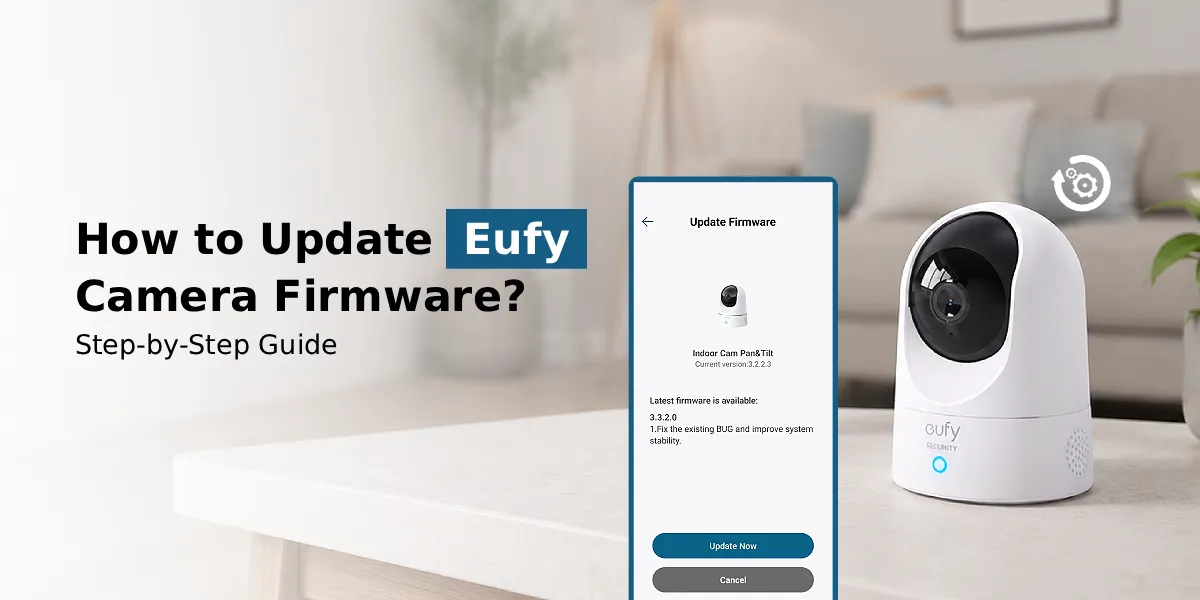
To update Eufy camera firmware, open the Eufy Security app, select your camera, go to Device Settings > General > About Device, and check for firmware updates. If an update is available, tap Update and keep the camera connected to Wi-Fi and power until the installation is complete.
If your Eufy camera has been acting a little glitchy lately, laggy live view, missed motion alerts, or a Wi-Fi connection that keeps dropping, outdated firmware could be the culprit. Firmware is the software that runs directly on your camera’s hardware, and Eufy regularly rolls out updates to improve performance, patch vulnerabilities, and introduce new features.
The good news is that performing Eufy camera firmware update is quick and doesn’t require any technical expertise. In this guide, we’ll walk through the exact steps to update your firmware, troubleshoot common errors, and answer the most frequently asked questions about the process.
Why Firmware Updates Matter for Your Eufy Camera?
Before diving into the steps, it helps to understand why an Eufy latest firmware update actually matters:
- When you update Eufy firmware, it closes security gaps that could otherwise be exploited by hackers.
- Many connectivity, battery drain, and app-sync issues are resolved through updates.
- Eufy occasionally adds new detection modes, storage options, or app integrations via firmware.
- Updated firmware often improves video processing speed and battery efficiency.
Skipping updates can leave your camera vulnerable and prone to glitches, which is why staying current should be part of your regular device maintenance.
How to Update Firmware on Eufy Camera?
Here’s the standard method to make the latest update Eufy camera firmware for most camera models, including indoor cams, outdoor cams, and battery-powered security cameras.
- Download the Eufy Security app from the App Store or Google Play if you haven’t already. Open the app and complete your Eufy security login using your registered email and password.
- From the home screen, tap on the camera you want to update. This takes you to the device’s live view and Eufy camera setup dashboard.
- Tap the gear/settings icon (usually in the top-right corner) to access your camera’s configuration menu.
- Scroll down to “About Device” or “Device Info.” Here, you’ll see your current firmware version and whether a new one is available.
- If an update is available, you’ll see an “Update Now” or “Firmware Update” option. Tap it, and make sure your camera stays connected to Wi-Fi and has sufficient battery (or is plugged in) throughout the process.
- The update typically takes a few minutes. Do not power off the camera or close the app during this process, as interrupting it can cause the update to fail.
- Once complete, go back to “About Device” to confirm the firmware version has changed. Restart the camera if prompted.
This same process applies whether you’re doing a routine Eufy security firmware update or checking for the latest firmware update after a new release announcement.
How to Update Eufy Doorbell Firmware?
Eufy doorbells follow a similar update process, with a few doorbell-specific nuances worth knowing.
- Launch the Eufy Security app and log in. If you manage multiple devices, make sure you’re accessing the correct home/device profile.
- Tap on your Eufy doorbell from the device list to open its dashboard.
- Tap the settings gear icon, then scroll to find “Device Info” or “About.”
- The app will display your current firmware version and flag if a newer version is available for download.
- Tap “Update,” and keep the doorbell connected to power and Wi-Fi. Doorbell updates can sometimes take slightly longer than camera updates due to additional hardware components (chime, speaker, motion sensors).
- Some doorbell models require a manual restart after the update finishes. If the app prompts you to restart, do so before testing functionality.
If you encounter the Eufy doorbell firmware update failed message, don’t worry, this is usually fixable. Move to the troubleshooting section below.
Troubleshooting: Eufy Firmware Update Not Working
If your Eufy camera firmware update won’t complete, try these fixes in order:
- Check Wi-Fi Signal: Weak or unstable Wi-Fi is the most common reason updates fail. Move your router closer or reduce network congestion.
- Ensure Sufficient Battery: Battery-powered cameras and doorbells need at least 30–50% charge to complete an update safely.
- Restart the App: Force-close and reopen the Eufy Security app, then try the update again.
- Restart Your Router: A quick router reboot can resolve connectivity hiccups blocking the download.
- Update the App First: Make sure you’re using the latest version of the Eufy Security app, as outdated apps can cause sync issues.
- Re-login: Log out and back into your Eufy security login, then retry the update.
- Contact Eufy Support: If none of the above works, connect with our Eufy support team. We can push a manual firmware fix or provide a replacement link.
FAQs
Does the Eufy camera update firmware automatically?
Yes, in most cases. Eufy cameras are designed to check for and install firmware updates automatically when connected to Wi-Fi. However, you can also manually trigger a check through the Eufy Security app if you don’t want to wait.
Why is my Eufy camera not updating?
The most common causes are a weak Wi-Fi signal, a low battery, an outdated app version, or a temporary server issue on Eufy’s end. Restarting your router, app, and device usually resolves the issue.
How long does a Eufy firmware update take?
Most Eufy camera firmware updates take between 3 and 10 minutes, depending on your internet speed and the size of the firmware file. Doorbells with extra hardware components may take slightly longer.
Can I manually install Eufy camera firmware?
Yes. You can manually check for and install available firmware through the Eufy Security app under the device’s “About” or “Device Info” section, even if automatic updates are enabled.
What should I do if the firmware update fails?
Check your Wi-Fi connection and battery level first, then restart the app and try again. If the update still fails, reboot your router or reach out to Eufy customer support for further help.
Why is updating Eufy camera firmware important?
Firmware updates patch security vulnerabilities, fix performance bugs, and often introduce new features. Skipping updates can leave your camera exposed to security risks and reduce overall device performance.
The Final Word
Keeping the Eufy camera firmware updated doesn’t have to be complicated. With the Eufy Security app, update Eufy camera firmware, whether for a camera or doorbell, takes just a few taps and minutes. If you ever run into update errors, the troubleshooting steps above should get your device back on track quickly. Staying current with each of Eufy’s latest firmware updates ensures your home security system stays fast, secure, and reliable.