
Why is My Eufy Camera Offline? Here’s How to Fix It
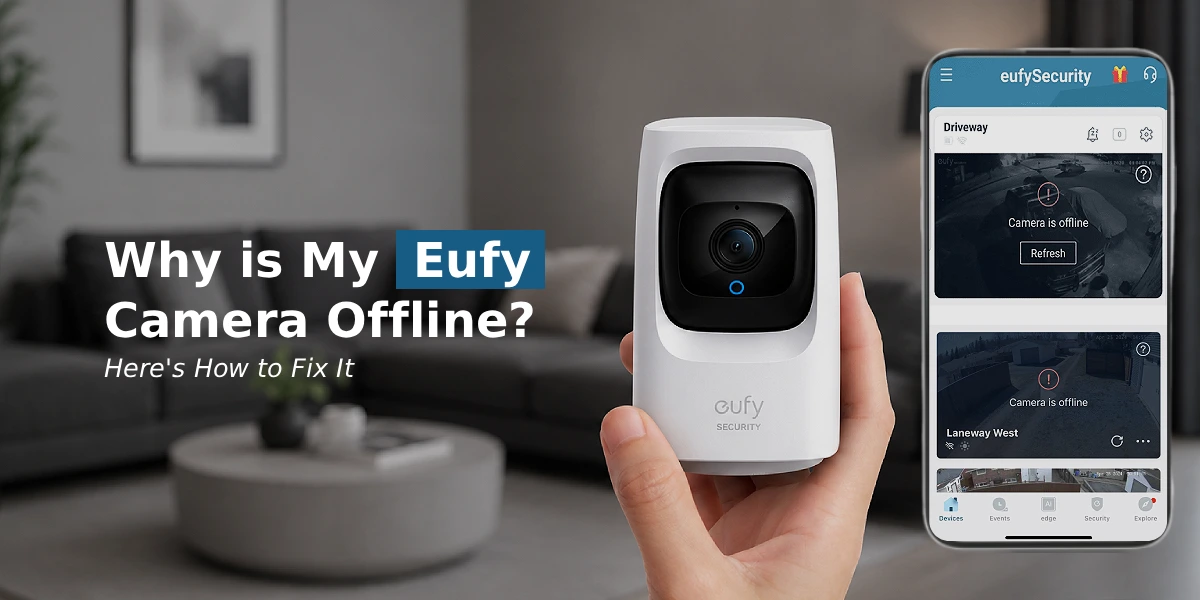
Your Eufy cameras keep going offline due to a weak Wi-Fi signal, router disruptions, outdated firmware, low battery, or a temporary server glitch. Most fixes take under 5 minutes: restart your router and camera, check your Wi-Fi connection, update the firmware through the Eufy app, or reconnect the device manually via Device Settings. If the issue persists, a factory reset followed by a fresh setup usually resolves it.
If you’ve glanced at your security app and seen the dreaded “offline” status next to your camera, you’re not alone. An Eufy camera offline issue is one of the most common frustrations reported by smart home users, and thankfully, most of the time it’s a quick fix. Whether it’s a one-time glitch or a recurring problem, this guide walks you through exactly why it happens and how to get your camera back online in minutes.
Why Does My Eufy Camera Keep Going Offline?
Your Eufy camera may keep going offline when the network connection becomes weak or unstable. The issue can also happen because of power problems.
- Weak WiFi Signal
Your camera may be too far from the router. Thick walls and obstacles can reduce signal strength and cause an Eufy device offline status. - Router Connection Problems
A temporary internet outage can disconnect your camera. Restart the router and check your internet connection. - Low Battery
Battery powered Eufy cameras may disconnect when the battery level becomes very low. Charge the device and check the connection. - Firmware Issues
Old firmware can affect device performance. Open the Eufy Security app and check for updates. - Network Changes
Changing your WiFi name or password can disconnect the camera. Reconnect the camera using new network details. - App Problems
An outdated Eufy Security app may not show the device status. Update the app.
How to Fix Eufy Camera Offline Issue?
Here’s a step-by-step troubleshooting checklist to resolve most connectivity issues:
1. Start With Your Wi-Fi Connection
Honestly, this is the culprit most of the time. Eufy cameras are pickier about signal strength than you’d expect, especially once you factor in distance from the router or a couple of thick interior walls standing in the way.
Try this first:
- Bring the camera closer to your router temporarily and see if it reconnects on its own
- Unplug your router for about 30 seconds, then plug it back in
- Double-check your Wi-Fi password or network name hasn’t changed
- Make sure you’re connected to the 2.4GHz band — a lot of Eufy models simply won’t work on 5GHz
If the camera has never really connected well from day one, this might be a bigger setup issue rather than a temporary drop. Our guide on Eufy camera not connecting to wifi walks through that scenario in more depth.
2. Try Restarting the Camera and HomeBase
Sometimes it really is that simple. A restart clears out whatever small glitch is confusing the connection.
If you’re running a camera without a HomeBase, just power it off — unplug it or pull the battery — wait half a minute, then power it back on.
If you do have a HomeBase, unplug it from both power and the router, wait a full 60 seconds, and plug it back in. Give it two or three minutes to finish booting before you check the app again. Patience matters here — checking too early just makes it look like the fix didn’t work.
This one step fixes more “offline” errors than people expect, especially right after a power outage or a router reset.
3. Check the Camera’s Wi‑Fi Signal
If a camera is installed far from the router, the Camera may lose its connection again and again.
Check for:
- walls that block signal
- Metal objects that block signal
- Large furniture that blocks signal
- Long distance between the camera and the router
- Other devices that cause wireless interference
If possible, move the camera closer to the router for a short time. If the camera reconnects and stays online, the Wi‑Fi signal strength may be the problem.
4. Check the Camera Battery
For battery‑powered Eufy Cameras, look at the battery level in the Eufy Security app. A low battery can affect how the camera works and may make the camera look offline. Fully charge the camera. Then check the camera’s connection again.
5. Update the Eufy Security App and Camera Firmware
An old app or old device firmware can sometimes cause connection or sync problems. Open the Eufy Security app. Look at the camera’s device settings for any firmware updates. Also make sure the mobile device is running the Eufy Security app version.
6. Check Whether Your Wi‑Fi Details Changed
Did you recently change your router, Wi‑Fi name or Wi‑Fi password? If yes, the camera may still be set up with the network information. In that case, reconnect the camera to the Wi‑Fi network through the Eufy Security app.
What’s Behind “Eufy Camera Offline After Charging”?
If you’ve pulled a battery camera off its mount to charge it and it came back showing offline, don’t panic — this is a known behavior with Eufy’s battery-powered models. Removing the camera disconnects it from the network, and it doesn’t always reconnect automatically once it’s done charging.
Here’s how to fix it:
- Once the camera’s fully charged, put it back in its original spot
- Open the app and check its status
- Still offline? Tap the camera and look for a reconnect or refresh option
- No luck after a few minutes? A quick reset (just a short hold on the reset button — not a full factory wipe) usually does the trick
If reconnecting alone doesn’t solve it, a soft reset almost always will. We’ve got the exact steps in our guide on how to reset Eufy camera devices without wiping your saved settings.
Eufy Doorbell Offline: A Bit of a Different Animal
A Eufy doorbell offline problem tends to be trickier than a regular camera, mostly because doorbells need steady power on top of a stable connection.
A few doorbell-specific culprits:
- Cold weather draining the battery faster than usual
- Interference from a metal doorframe or nearby electronics
- A Wi-Fi extender that’s creating a weak handoff right near the entrance
What usually helps:
- Check the battery level in the app — if it’s under 20%, charge it before troubleshooting anything else
- Move any extenders closer to the doorbell if the signal looks weak
- Take the doorbell off its bracket and reseat it to make sure the contacts are lined up properly
If it’s dropping offline daily despite all that, you’re probably better off redoing the Wi-Fi setup from scratch rather than fighting with quick fixes.
How Do I Reconnect My Eufy Camera to Wi-Fi?
Tried the quick fixes and still stuck? Here’s the complete reconnect process, step by step:
- Open the Eufy Security app and head into device settings
- Choose “Remove Device” — don’t worry, this won’t touch recordings stored locally
- Put the camera into pairing mode, usually by holding the reset button until you hear a tone
- Add it back through the app like you’re setting it up for the first time
- Reconnect to your Wi-Fi, and take an extra second to make sure the password is typed correctly
This full re-pairing handles the stubborn cases that a simple restart won’t touch. If you’re setting a camera up for the very first time, our Eufy camera WiFi setup guide covers that process from the beginning.
When to Update Eufy Camera Firmware or Perform a Factory Reset?
If your Eufy cameras keep going offline over and over, even after reconnecting each time, outdated firmware might be quietly causing it. Firmware updates often patch exactly this kind of connection instability.
- In the app, go to Settings > Device Info and check for updates
- Still having trouble after updating? A factory reset might be necessary
- After resetting, set the camera up fresh rather than trying to restore old settings — it tends to work more reliably that way
Save the factory reset for last, though. It wipes your custom settings, so it’s worth trying everything else first.
The Final Word
Seeing your Eufy camera offline can be alarming, especially if you rely on it for home security. Fortunately, most causes are simple to diagnose and fix, ranging from Wi-Fi hiccups to firmware updates. By following the steps above, you can restore connectivity and prevent Eufy cameras from going offline and becoming a recurring headache.
Frequently Asked Questions
Does Eufy camera work with 5 GHz Wi-Fi?
Most Eufy camera models are designed to work with 2.4 GHz Wi-Fi networks only, as this frequency offers better range and wall penetration, which is ideal for security devices. Check your specific model’s specifications, as newer models may support dual-band connectivity.
Can restarting my router fix the Eufy camera offline issue?
Yes, restarting your router is one of the most effective first steps. It refreshes your network connection, clears temporary glitches, and often resolves connectivity issues without needing further troubleshooting.
How can I improve my Eufy camera's Wi-Fi signal?
Position your router closer to the camera, minimize obstructions like walls and metal objects, and consider using a Wi-Fi extender or mesh system if your camera is in a far corner of your home or yard.
Why is my Eufy camera offline after a power outage?
Power outages can disrupt the camera’s connection to your router, and in some cases, the device may not automatically reconnect. Manually restarting the camera after power is restored usually resolves this.
What should I do if my Eufy camera is still offline after troubleshooting?
If basic troubleshooting doesn’t work, try a full factory reset and redo the Eufy setup process. If the issue persists, contact Eufy customer support, as it may indicate a hardware fault.
Can a low battery make the Eufy camera offline?
Yes, battery-powered Eufy cameras can go offline or enter a low-power mode when the battery is critically low. Charging the device fully typically restores normal connectivity.
How do I stop my Eufy camera from going offline again?
Keep your firmware updated, ensure a strong and stable Wi-Fi signal, avoid placing the camera too far from your router, and periodically check battery levels for wireless models to prevent recurring offline issues.