
How to Share Eufy Camera With Family and Friends?
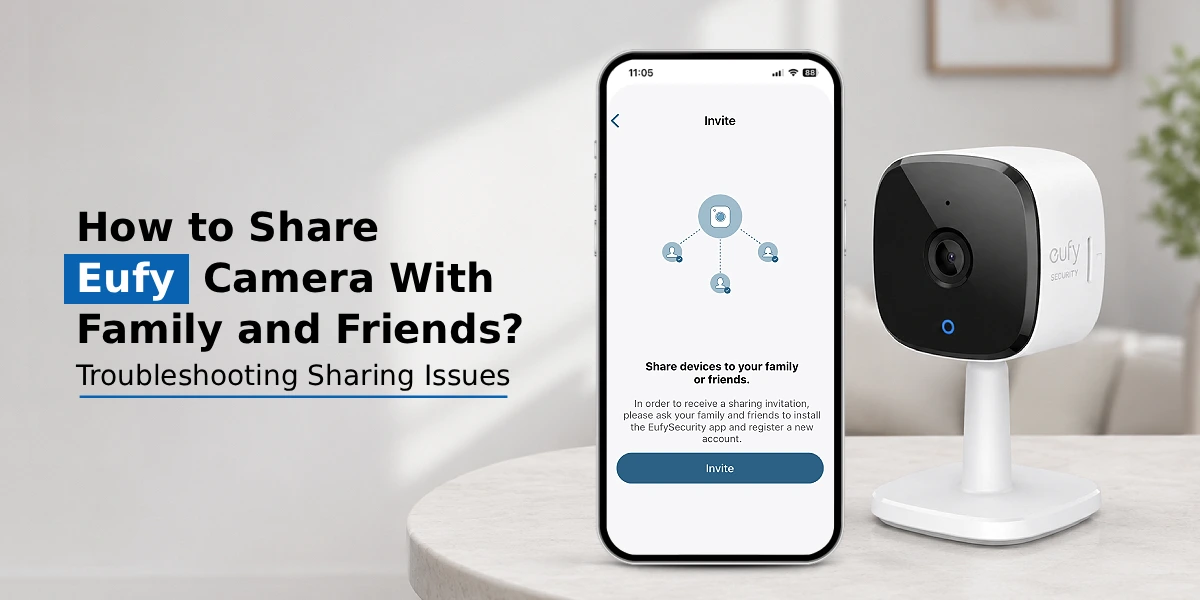
To share Eufy camera access with family or friends, open the Eufy Security app, go to your Avatar menu, select “Share Devices,” and choose whether to share your entire home setup or a single device. You’ll need the invitee’s email (the one linked to their Eufy account) and you can assign them either Admin or Guest permissions. Once they accept the invite from their own phone, they can view live feeds, get alerts, and check recordings, all without needing your login credentials. Eufy currently allows up to five shared users per device, and the process works the same way whether you’re sharing a standard camera or a video doorbell.
Home security only works well when the right people can see it. Whether it’s a partner who wants eyes on the front porch, a parent watching over the kids, or a neighbor keeping an eye on your house while you travel, knowing how to share Eufy camera access is one of the most useful things you can do with your setup. The good news is that Eufy makes this fairly straightforward through its app, and you don’t need to hand over your camera login or password to anyone. This guide walks through exactly how to share your Eufy camera with family and friends, the difference between sharing a device versus a whole home, and how to fix things if sharing isn’t working the way it should.
What You Need Before You Share Your Eufy Camera?
Before diving into the steps, make sure a few basics are in place:
- Your camera is already set up and online in the Eufy Security app under your own account.
- The person you’re sharing with has downloaded the Eufy Security app on their own phone or tablet.
- They have a Eufy account, either a new one or an existing camera login, since sharing is tied to accounts, not device serial numbers.
- Your camera’s firmware is current. A missed Eufy camera firmware update can occasionally cause sharing invitations to fail or notifications to not sync properly, so it’s worth checking Device Settings > Firmware before you start.
Once these are sorted, you’re ready to actually share Eufy camera access.
How to Share Eufy Camera with Family? (Step-by-Step)
Eufy offers two sharing methods depending on how much access you want to give:
Option 1: Share Home (gives access to all devices tied to your home)
- Open the Eufy Security app and tap the menu icon in the top-left corner.
- Tap your Avatar, then select Share Devices.
- Choose Share Home.
- Tap Invite and enter your family member’s email address (the one linked to their Eufy account).
- Send the invite.
Option 2: Share Device (gives access to one specific camera)
- From the same Share Devices menu, select Share Device instead.
- Choose Invite, then pick Admin or Guest for the new user.
- Select the specific camera or doorbell you want them to access.
- Enter their email address and hit Send.
Your family member then needs to open (or refresh) the Eufy app on their own device and accept the invitation. Once accepted, the camera shows up automatically in their app, no separate download link or file transfer needed.
How to Share My Eufy Camera with Another Phone?
If you’re wondering how to share your Eufy camera with another phone, say, a second phone you personally use, or a family member’s device, the process is identical to the steps above. The “other phone” simply needs the Eufy app installed and signed into an account (yours or theirs). If it’s your own second phone, you can either log into the same Eufy account directly, or, for cleaner permission control, create a secondary account and share the device to it as a Guest. This keeps activity and notification settings separate between devices.
How to share Eufy doorbell camera?
Sharing a Eufy doorbell camera works through the exact same “Share Devices” flow, since Eufy doorbells run on the same app infrastructure as their other security cameras. The one thing worth noting is that doorbell sharing often matters more for real-time use, like letting a family member answer the door remotely, so it’s usually better to grant Admin access rather than Guest if you want them to respond to visitors, not just watch.
Eufy Share Camera Access
When you share Eufy camera access, you’ll be asked to choose a permission level:
- Admin: Full control; live view, recordings, alerts, and the ability to change camera settings.
- Guest: View-only access; they can watch live feeds and recordings but can’t adjust settings or manage other users.
Choosing correctly matters for both convenience and privacy. A co-parent or spouse might need Admin access, while a babysitter or neighbor is usually better suited to Guest.
Troubleshooting Sharing Issues
If your invite doesn’t seem to go through, a few common fixes usually solve it:
- Confirm both accounts are registered in the same region/login environment (found under Settings > Region).
- Make sure the invitee accepts the invite from within the app, not just the email.
- Double-check the email address matches their actual Eufy login.
- Update your Eufy camera firmware if it’s several versions behind, since older firmware can interfere with newer sharing features.
FAQs
Can multiple people access the same Eufy camera?
Yes. Eufy currently allows up to five shared users per device, each with their own login and permission level.
Does my family member need a Eufy account?
Yes. They need the Eufy Security app installed and either a new or existing Eufy account tied to the email you invite.
Can I control what my family members can access?
Yes. You can assign Admin (full control) or Guest (view-only) access, and choose whether to share your entire home or just one specific camera.
Why can't my family member see the shared Eufy camera?
This is usually caused by an unaccepted invitation, mismatched account regions, or an outdated app or firmware version. Confirm they accepted the invite in-app and that both accounts are in the same login region.
Can I stop sharing my Eufy camera with someone?
Yes. Go to Share Devices in the app, select the shared user, and remove their access at any time. This immediately revokes their ability to view the camera.
Can I share Eufy camera with someone in another location?
Yes. Since sharing works through Eufy accounts over the internet rather than local network access, family or friends can accept the invite and view your camera from anywhere, as long as they have the app and an internet connection.
Final Thought
Sharing your Eufy camera with family and friends is a way to boost home security while keeping your personal login details private. You can choose to share the house or just one Eufy camera and Eufy gives you control with Admin and Guest permissions. Be sure that the person you invite is using the Eufy account and that they accept the invitation through the app. With the settings, you can safely share Eufy camera access and still keep your devices and account safe.