
How to Reset Eufy Camera?: A Complete Step-by-Step Guide
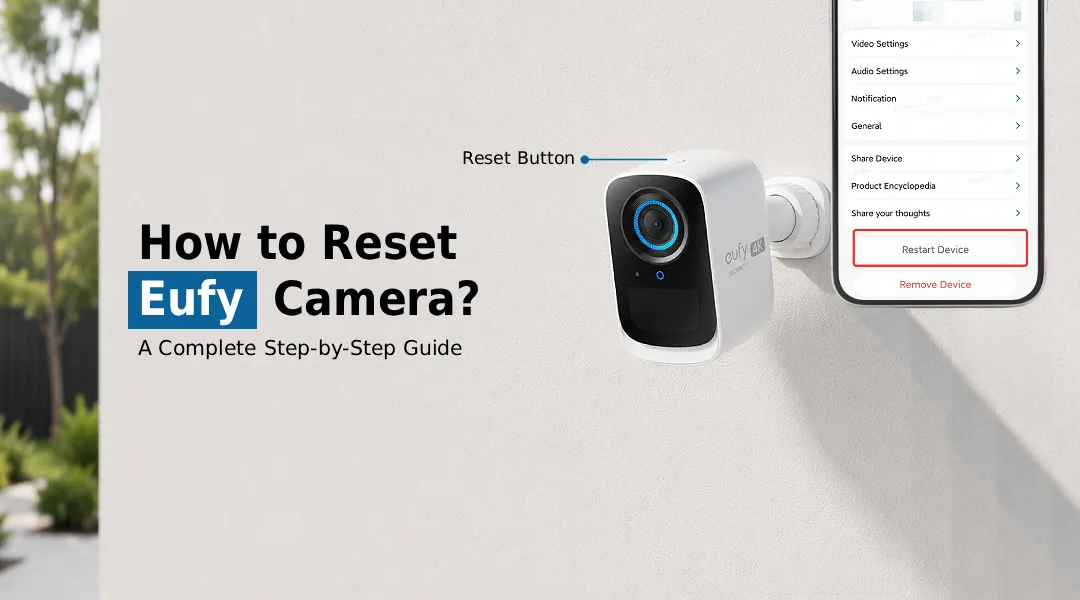
To reset your Eufy camera, locate the Sync/Reset button and press and hold it for about 10–15 seconds until you hear a beep or see the LED indicator change. Release the button, wait for the camera to restart, then set it up again using the Eufy Security app.
Should your Eufy camera become problematic and either go offline or refuse to connect to Wi-Fi, performing a reset would usually be the easiest way out. Regardless of whether you need to fix some connectivity issues with the application or just want to prepare your device for resale, learning how to factory reset Eufy camera will prevent you from spending hours on unnecessary complications.
Why Reset Your Eufy Camera?
Before discussing the process, it would be best to know when a factory reset is indeed needed. Here are some common scenarios wherein someone might look up how to do a factory reset eufy camera:
- The camera appears offline even though you have an active internet connection
- You will use another Wi-Fi router/network
- The app doesn’t sync with your device
- The device is for sale, gift or reuse
- Constant lagging, freezing, or connectivity problems
- Forgot Eufy user account connected to the device
The process of resetting an Eufy camera brings back your device to its factory settings, thus eliminating all customized settings.
Eufy Soft Reset or Factory Reset — Which One Do You Need?
People mix these up constantly, so it’s worth being clear.
Eufy Soft Reset
This is basically unplugging the camera and plugging it back in. Nothing gets erased — no WiFi info, no settings, nothing. It’s the equivalent of restarting your phone when an app freezes.
Eufy Factory Reset
This wipes everything: WiFi credentials, custom settings, the link to your account — all of it. Afterward, the camera acts brand new and has to be set up again from scratch.
If you’re not sure which to try, start with the soft reset. It’s faster and doesn’t risk losing anything.
How to Soft Reset Eufy Camera
- Find the power cable (or battery, on wireless models).
- Unplug it or pull the battery for about 10 seconds.
- Plug it back in or reinsert the battery.
- Give it a minute or two to boot back up.
- Check the Eufy Security app to confirm it’s online again.
Honestly, this fixes more issues than people expect — worth trying before anything more drastic.
How to Factory Reset Eufy Camera: Two Ways to Do It
The steps differ slightly depending on your model, but most cameras fall into one of these two methods.
These are the two basic methods: reset via the app or via the button. Here’s how you do it.
Method 1: Reset Eufy Camera Using the App (Recommended)
It is the easiest and most convenient way to reset the camera.
- Launch the Eufy Security app on your phone.
- Log in to your Eufy account using your email address and password.
- Choose the particular camera that you wish to reset from the list of devices.
- Click on the Settings (gear icon).
- Move further down and select Advanced Settings or Device Settings.
- Choose Remove Device or Reset Device based on your model type.
- Click OK when asked to confirm the selection.
- After removal, continue the process through in-app guidance to add the device once again and set it up, along with Eufy setup wifi steps.
This approach takes care of the Eufy camera reset wifi settings process, helping clear the old network credentials so you can input new ones during the setup process.
Method 2: Reset Eufy Camera Using the Physical Button
However, if the app is unresponsive, the camera is not connected to Wi-Fi, or if you don’t have any more access to the previous account used to log into the camera, you can perform the process manually without using the app.
- Find the location of the reset button on your camera. The reset button is normally a tiny hole found on the rear, bottom, or sides of the device.
- Using a paper clip or SIM ejector tool, push down the reset button.
- Hold it for 10 to 15 seconds till the camera gives a beep or changes its status LED light.
- After that, release the button and wait for the camera to reboot. This may take from 1 to 2 minutes.
- After rebooting, the camera will be in pairing mode and can be paired for a new Eufy wifi.
This will be your go-to solution if you are unsure how to reset your eufy camera to factory settings without an app, especially if you forgot your login password or purchased a second-hand camera.
How to Reset Eufy Camera WiFi Settings Only?
Sometimes the solution does not require resetting the entire camera; all that is needed is to change the Wi-Fi network. In this scenario:
- Launch the Eufy app and access the Eufy login menu.
- Pick “Wi-Fi Settings” or “Network Settings”.
- Click “Change Network” or “Reconnect”.
However, if you don’t find this option in your device, eufy camera reset wifi using the button will be your next best solution.
Setting the Camera Back Up After a Reset
Once it’s reset, adding it back is quick:
- Tap the “+” icon in the app to add a new device.
- Pick your camera model from the list.
- Scan the QR code on the camera, or type in the setup code.
- Follow the prompts to finish WiFi setup.
- Set your motion detection, alerts, and storage preferences.
Takes most people under five minutes.
What If the Camera Won’t Reset at All?
A few things to try:
- Hold the button longer. Some models need a full 15–20 seconds, not just a quick tap.
- Check the power. Low battery or a loose connection can interrupt the reset process.
- Update the app. An old version sometimes causes setup to hang.
- Restart your router. Sometimes it’s not the camera’s fault at all.
- Contact Eufy support if nothing works — could be a hardware issue at that point.
Troubleshooting: Eufy Camera Disconnecting After Reset
It’s possible that the problem of the Eufy camera being offline will remain even after the reset. Let’s see why this happens and what can be done about it:
- Poor Wi-Fi connection: Put the camera closer to your router or get a Wi-Fi booster.
- Wrong frequency band: Most Eufy cameras don’t work on 5GHz but only 2.4GHz.
- Outdated firmware: Upgrade the camera’s firmware using the app when it connects again.
- App problems: Close and relaunch the Eufy app or reinstall it.
- Router issues: Turn off MAC address filtering or guest network segregation while you are setting up the camera.
However, in case none of the above solutions resolve your problem, reach out to Eufy customer service, as there might be an issue with the hardware itself.
Final Thoughts
Having the knowledge of how to properly reset Eufy camera gives you power when connection issues arise. You can perform a soft reset for your camera if the connection problem is just about that, but if it’s more serious than that, then go for the hard factory reset. It’s not difficult to reset your eufy camera, and it will only take a few minutes.
Frequently Asked Questions
Why is my Eufy camera not connecting to Wi-Fi after a reset?
How do I factory reset my Eufy camera without the app?
Hold the physical reset button for 10–15 seconds until you hear a beep. No app needed.
Where is the reset button on an Eufy camera?
Reset button positions may differ from one model to another but can often be found at the bottom, back, or around the power source connection area of the camera. The button is often recessed and needs something like a pin to push it.
Should I reset the camera before selling it?
Yes, always. Factory reset it and remove it from your account first, for your own privacy.
Does resetting an Eufy camera delete recordings?
It should be noted that local recordings on the SD card in the camera do not get erased in case of camera resetting. But it is necessary to save your important data before carrying out any reset operations.
Will resetting my Eufy camera delete all settings?
Yes. A factory reset will delete all the custom settings, which include Wi-Fi information, detection area information, notification settings, and linked accounts.
What should I do if my Eufy camera is still offline after a reset?
Make sure you have the correct Wi-Fi band (2.4 GHz is necessary for almost all devices), update the router firmware, make sure that the Eufy app is up to date, and then remove and re-add the device to the system.