
Why Is My Eufy App Not Working? Causes and Quick Fixes
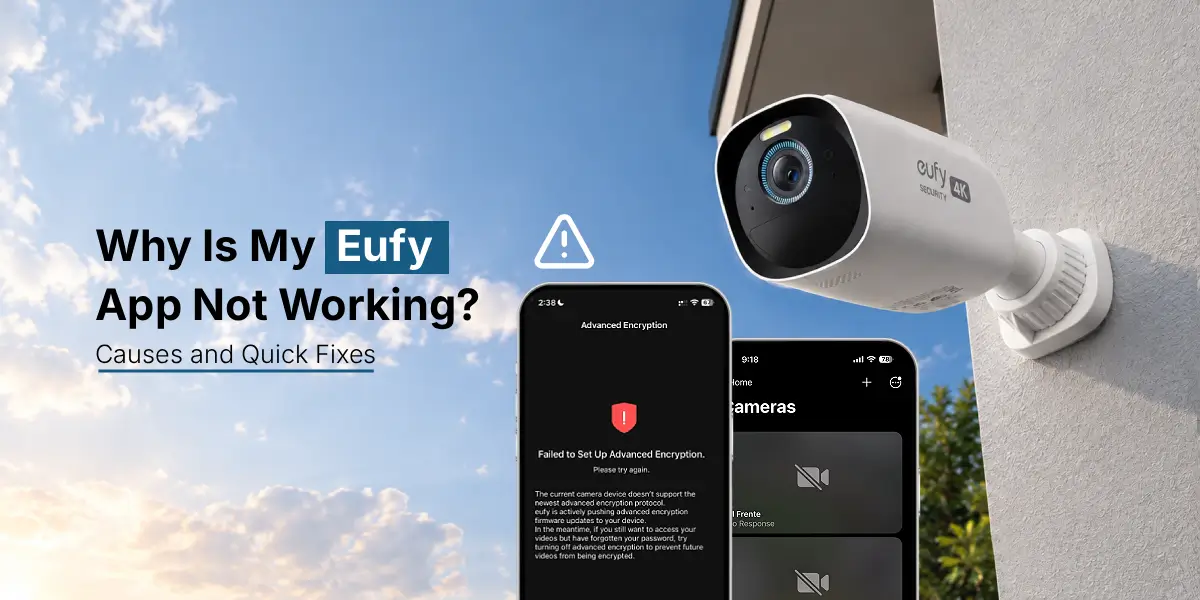
If your Eufy app is not working, check your internet connection and restart the app. Update Eufy Security or Eufy Clean from your phone’s app store. Check notification permissions and confirm your camera has power and Wi-Fi access. For login errors, verify your account details. If the issue continues, clear the Android cache or contact Eufy Support.
The Eufy app not working issue can appear when it cannot provide the required security or comfort due to not having access to cameras, notifications, or smart devices. Such a scenario is possible because of a weak Wi-Fi connection, an outdated application version, wrong settings, or improper functioning. However, the current problem can be solved by a few simple steps in several cases. The blog below will present the main ideas about the Eufy app malfunction and quick solutions to fix it.
Common Causes of the Eufy App Not Working
Before you proceed to fix the issue, make sure that you understand what could be the reason behind it. In most cases, the problems are connected to the following:
Eufy App Not Working Cause | Description |
Unstable connection | Make sure that your Wi-Fi is strong enough and your cell phone has a good signal. |
Outdated version | An outdated version of the app can contain various errors and bugs. |
Disabled permissions: | Make sure that notifications, background running, and camera permission are all enabled on your device. |
Camera malfunctions | The camera can be disabled or malfunctioning, resulting in no video feed. |
Authentication error | Check if there are any mistakes in your personal account or if you are logged in under the wrong user. |
Software malfunction | The online platform on which your speaker is based might have crashed, causing malfunctions and hindrances. |
Outdated firmware | Make sure that your firmware is up to date, as an old version could cause malfunctions. |
The understanding of the error is helpful to point you in the right direction and save you from unnecessary attempts and reboots.
How to Fix the Eufy App Not Working Issue?
Here is a list of instructions that could be followed to solve the issue.
- First of all, make sure that there is an internet connection: Wi-Fi or mobile data.
- Then, try to restart the application. If it does not work, reboot the phone.
- Next, update the application in the Google Play Store or Apple App Store.
- Make sure that notifications are enabled and permissions are granted.
- Check the login information and ensure that they are correct.
- If none of the above instructions worked, reconnect devices to the camera’s Wi-Fi.
Last but not least, you should try to clear the cache or uninstall the application and install it again to overcome the problem.
Quick fixes:
- Open another application or website to ensure that your internet connection is normal.
- Toggle off and on the Wi-Fi and mobile data options to see if there is an issue with the connection.
- Restart your router if multiple devices are not able to access the internet.
- Come closer to your router if you are having trouble with the wireless connection.
- Turn off the VPN if it is active and is affecting the connection.
Once you have fixed the problem, you need to go back to the Eufy application and confirm that all devices are online.
How to Resolve Eufy App Notifications Not Working?
Notification errors in your Eufy app may cause you to miss out on crucial security updates or cleaning alerts.
There are a variety of possibilities that might be responsible for the malfunctions.
- Insufficient permissions
- Battery optimization and notification settings in the application itself.
You can attempt to resolve the Eufy app alerts not working issue by following these instructions:
- Go to your device’s settings and find the Eufy application
- Enable the notifications and choose which alerts you want to receive
- Go to the app’s notification settings and make sure they are turned on
- Check the Do Not Disturb or Focus settings in your system
- Go to the battery optimization settings and ensure that the application is not restricted there
- Verify that the appropriate camera is online
Note: If none of these solutions fix the Eufy app notifications problems, confirm that the notifications are indeed available for the specific device/activity/detection you are trying to view.
Troubleshoot the Eufy Clean App not working problem
If the Eufy Clean app is not working, first make sure that the device is turned on, connected to the wireless network, and bound to the proper account. Restart the application and the robot vacuum according to the instruction manual. Check if the program is compatible with the phone’s operating system, if it is allowed to run in the background, and if there are any updates. If the vacuum cleaner is offline, learn how to reconnect it to the application. In case of failure, unbind the device from the phone.
How to Fix Eufy Security Login Problems?
If you cannot log in to your account, you can check the following points and fix them.
- Make sure that you are typing the correct email address and password.
- Ensure that your internet connection is stable
- You have completed any security checks that appear on the website.
- When facing difficulties logging in to Eufy, the best approach is to close the application and reopen it.
- If you have forgotten the password, you need to reset your password according to the instructions.
If you still cannot log in to Eufy despite entering the correct details, it is possible that there is a problem with the service, or you would benefit from contacting customer support.
Key points: It is not advisable to create a second account unless you are certain that you will not be able to regain access to the first one, as your devices will most likely be linked to the original account.
How to Fix an Eufy Camera Not Connecting to the App?
A camera that has lost its network connection might show up as offline or as having no live video.
- Make sure that the router is working correctly and that the camera has a reliable wireless connection.
- Head to the relevant Eufy app, select the camera or device option, and follow the wizard instructions for your camera model.
- It is recommended that you place the camera close to the router to establish an initial connection.
It is possible that your camera will require a specific band in order to connect to wifi. Always refer to the manufacturer’s guidelines before attempting to alter the settings on your router.
Note: Avoid restoring factory settings on the camera unless other options do not work.
Steps to Update Eufy Camera Firmware
These steps will guide you through updating your Eufy camera’s firmware:
Step 1: First of all, open the Eufy app on your smartphone and log in to your account.
Step 2: Then, select the desired camera and proceed to the device settings.
Step 3: Now, you will be able to see the Update Firmware button if there is an update available.
Step 4: It remains to follow the step-by-step instructions that appear on the screen.
Step 5: Do not turn off the device until the process is complete.
Step 6: Make sure the camera is connected to a reliable power source and the internet during the updating process.
Step 7:After the update has been successfully installed, restart the camera and check if it is working properly.
In the case of no update, you should try to troubleshoot other problems with your Eufy camera.
If you are still facing Eufy App Not Working issues, use the advanced troubleshooting options
- Clear App Cache
Clear the cache on your Android device and try logging in again.
- Update the Application:
Update the Eufy Security app to its latest version.
- Turn Off the VPN
If you are using a virtual private network, disable it and try again.
- Contact the Eufy Support Team
If the issue persists, you can contact the customer support team to report the problem.
- Use Another Device
To confirm that the problem is not with the phone, attempt to use the application on another device.
- Background Permission
Ensure that Eufy has permission to run in the background, especially in terms of notifications.
FAQs:
How do I fix the Eufy app when it keeps crashing?
Update the application, restart your device, and ensure that the operating system is updated. On Android, delete the application’s cache. If it does not help, uninstall and reinstall the program on your phone after double-checking your login information.
Why is my Eufy app not connecting to my camera?
Your camera is incompatible with your network, turned off, or has an unstable connection. Try restarting the device if it is possible and check the router. Follow the instructions provided by the app to reconnect to the camera.
Why is the Eufy app slow or stuck loading?
The issue is due to an unstable connection, an outdated application version, a network or server error, or insufficient power. Verify the connection you are using. If you are online, update the application. Close other programmes on your device and reopen the app.
Can reinstalling the Eufy app fix the problem?
Yes, you can. However, it will only address the error caused by the application itself. It will not resolve the issue if your router is broken, the camera is offline, or there is a server malfunction. You should also ensure that your login information is accurate if you decide to reinstall the program on your mobile device.
Why is my Eufy camera not showing in the app?
It can happen if the camera is offline or unplugged, incompatible with your system, or not correctly set up. Ensure that it is connected to your device and turned on. Check if it was paired with another account previously or has been deleted from your device. If so, turn it off and back on again, and link it to your profile.
Final thoughts
The most common causes of the Eufy app not working properly are related to the user’s internet connection, updates for the application, incorrect login details, or problems with linking the devices. If these solutions don’t work, you may want to try advanced troubleshooting methods or contact Eufy Support directly to get accurate help.
Always make sure that your device has the latest updates and that the Eufy app is opened correctly to avoid issues with unauthorized access and other malfunctions.