
How to Connect Eufy Camera to WiFi: A Step-by-Step Guide
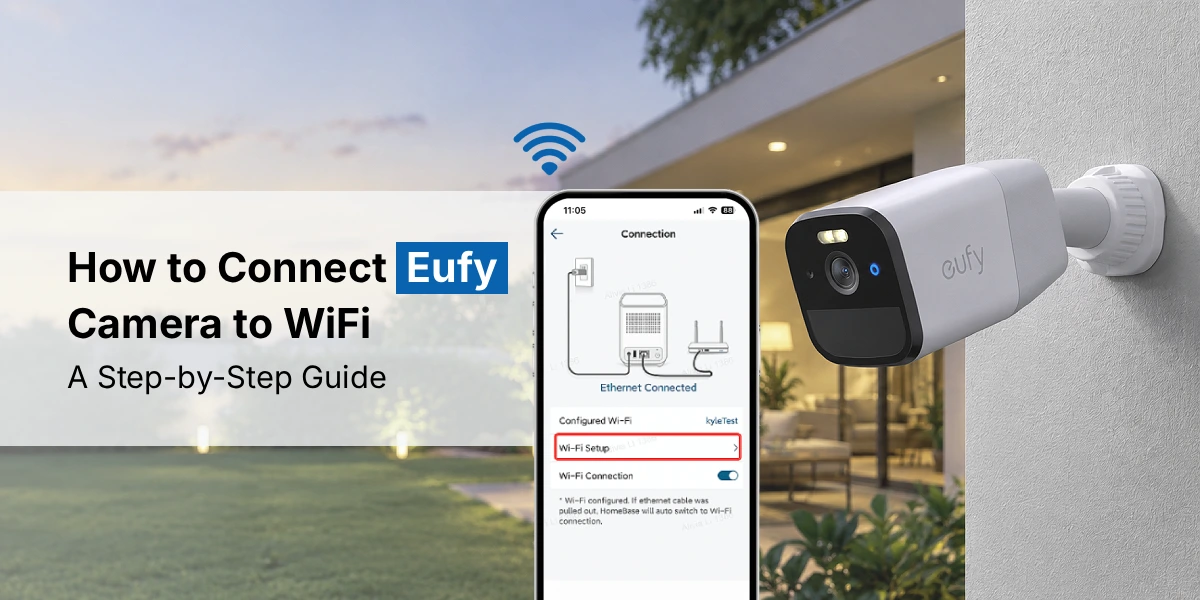
To connect Eufy camera to WiFi, install the Eufy Security app, create an account, tap Add Device, scan the QR code and enter your 2.4GHz WiFi details when prompted. The process takes around five minutes. If the camera refuses to join your network, moving it closer to the router, restarting it or doing a camera reset usually fixes the problem.
Connecting a Eufy camera to WiFi allows you to monitor your home from your phone. A stable WiFi connection is important for live video access, notifications, cloud features and other smart security functions. If you have recently purchased an Eufy camera then you may need to complete the WiFi setup before using the camera.
This guide explains how to connect Eufy Camera to wifi with simple steps. It also covers common connection problems and useful troubleshooting methods.
What You Need Before Connecting Eufy Camera to WiFi?
A little preparation makes the whole process smoother. Before you begin, have these ready:
- Your Eufy camera, plugged in or fully charged
- A smartphone with Bluetooth and location services turned on
- The Eufy Security app (free on iOS and Android)
- Your WiFi network name and password
- A 2.4GHz WiFi connection
That last point trips up most people. The majority of Eufy cameras only work on 2.4GHz WiFi, so if your router combines 2.4GHz and 5GHz under one network name, your phone may join the 5GHz band during setup and cause errors. Temporarily switching off the 5GHz band, or giving each band its own name, avoids the issue. It also helps to stay within a few metres of your router during the initial setup. You can move the camera to its final spot afterwards.
How to Connect Eufy Camera to WiFi?
Here is how to connect Eufy camera to WiFi using the Eufy Security app. The exact prompts change a little by model. The process is very similar.
- Download the Eufy Security app and sign in or create an account if this is your first Eufy device.
- Turn on your camera. Wait for the startup sound or a flashing light. Some models also say that they are ready to pair.
- Tap the plus icon (Add Device) in the app. Pick your camera model from the list.
- Follow the instructions on the screen to scan the QR code. Some cameras tell you to scan a code on the device, while others tell you to hold a code shown on your phone up to the lens.
- Choose your 2.4GHz WiFi network and type in the password carefully since it is case-sensitive.
- Wait for the camera to show the connection with a voice message or a solid light then give it a name and pick its location.
If your camera works with a HomeBase, the Eufy setup is a little different. You set up the HomeBase first. The cameras then connect to it instead of to your router directly. Once the app shows your camera online, do a live-view test before you put it in place.
Can you Connect Eufy Camera to WiFi Extender?
Yes. You can connect Eufy Camera to a WiFi extender if the camera is far from the main router. Start by setting up the extender. Make sure the extender gets a signal from your router. Place the extender somewhere between the router and the Eufy camera for connection. Open the Eufy Security app. Begin the camera setup. Look for the extender’s network when it appears. Enter the WiFi password. Follow the on-screen steps carefully. Keep the camera near the extender during setup. A stable extender connection helps avoid signal drops and can improve the performance of your Eufy camera.
What to do if your Eufy Camera will not connect to wifi?
If your Eufy Camera will not connect to WiFi then try these simple steps:
- Check that your WiFi router is working properly
- Move the camera closer to your router
- Confirm that you entered the correct WiFi password
- Check whether your camera supports your WiFi network
- Restart your Eufy Camera and router
- Make sure your Eufy Security app is updated
- Try connecting the camera to a 2.4 GHz network if supported
- Remove the camera from the app and add it again
- Reset Eufy camera if other solutions do not work
- Check for router settings that may block new devices
Why Eufy cameras keep going offline?
Eufy cameras keep going offline because of weak WiFi signals or an unstable internet connection. Check your router and make sure the camera is within a good wireless range. Restarting the camera and router can refresh the connection. Outdated firmware may also cause network problems, so check for available updates in the Eufy Security app. Incorrect WiFi settings can also prevent a stable connection. If you recently changed your WiFi name or password then reconnect the camera using the new details. Power interruptions can also disconnect the camera. If the problem continues then reset the camera and complete the setup again.
FAQs
What WiFi does a Eufy camera support?
How do I change the WiFi network on my Eufy camera?
Why does my Eufy camera keep disconnecting from WiFi?
Does Eufy camera support 5GHz WiFi?
Can I connect my Eufy camera without the internet?
The final word
Learning to connect Eufy camera to WiFi comes down to three habits: use a 2.4GHz network, stay close to the router during setup, and keep your firmware current. If you hit a snag, the fixes above will sort out most problems. Once your camera is online and stable, you can rely on steady alerts and live footage whenever you need them. If your Eufy camera not connecting to wifi then restart the network and verify compatibility. For distant locations, you can connect Eufy camera to wifi extender to improve wireless coverage.